


Welcome to the Client Portal user guide. Here you will find tutorials and answers to frequently asked questions to help you log in for the first time, manage your access, navigate the portal, and resolve common issues. This guide is designed to walk you through each step to simplify your experience and optimize efficiency.
Connection
How do I create my access to the Client Portal?
Creating your online access is simple and completely self-directed: just follow the steps below to quickly activate your account.
- Go the login page, then click on Create my access.
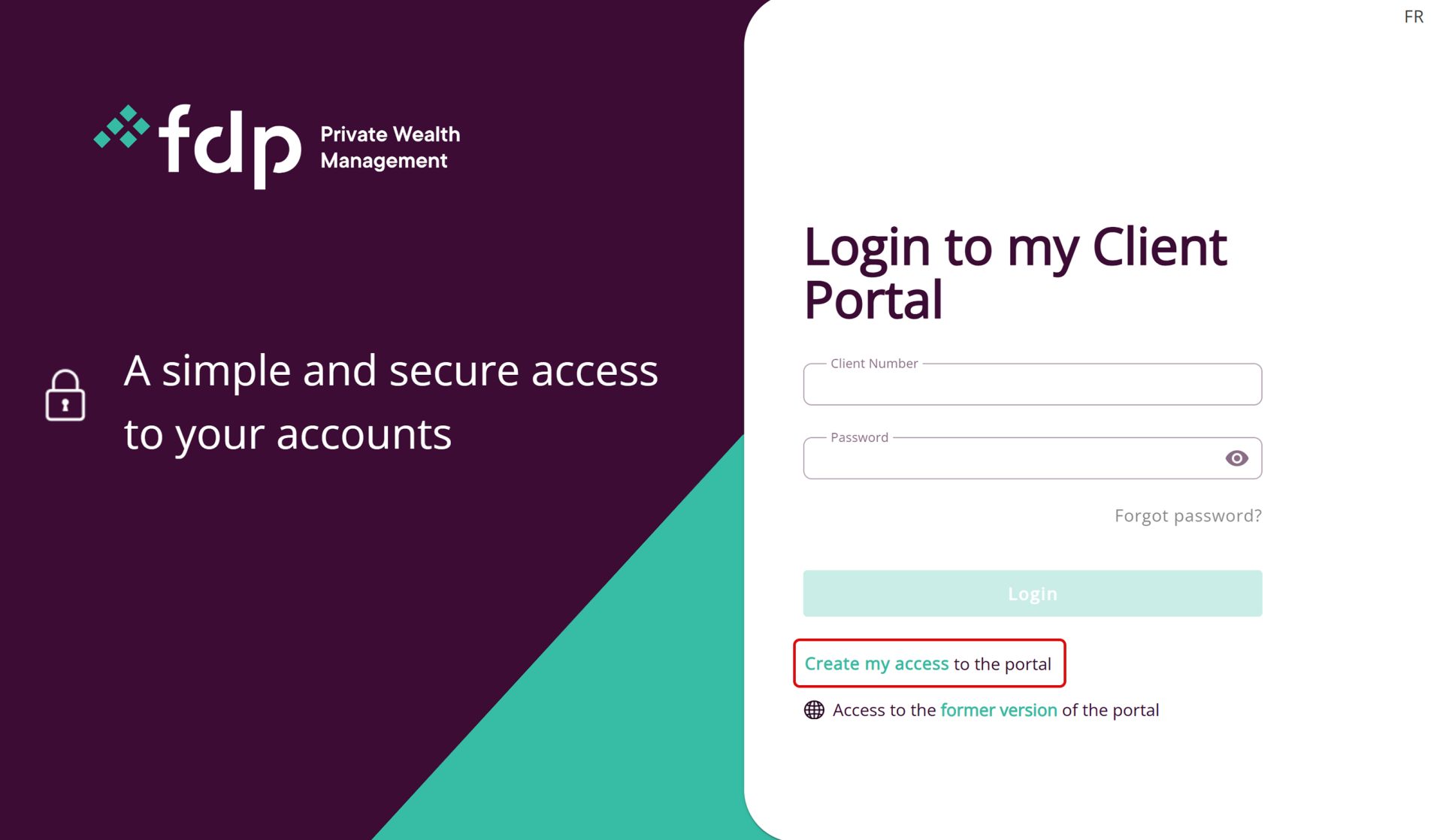
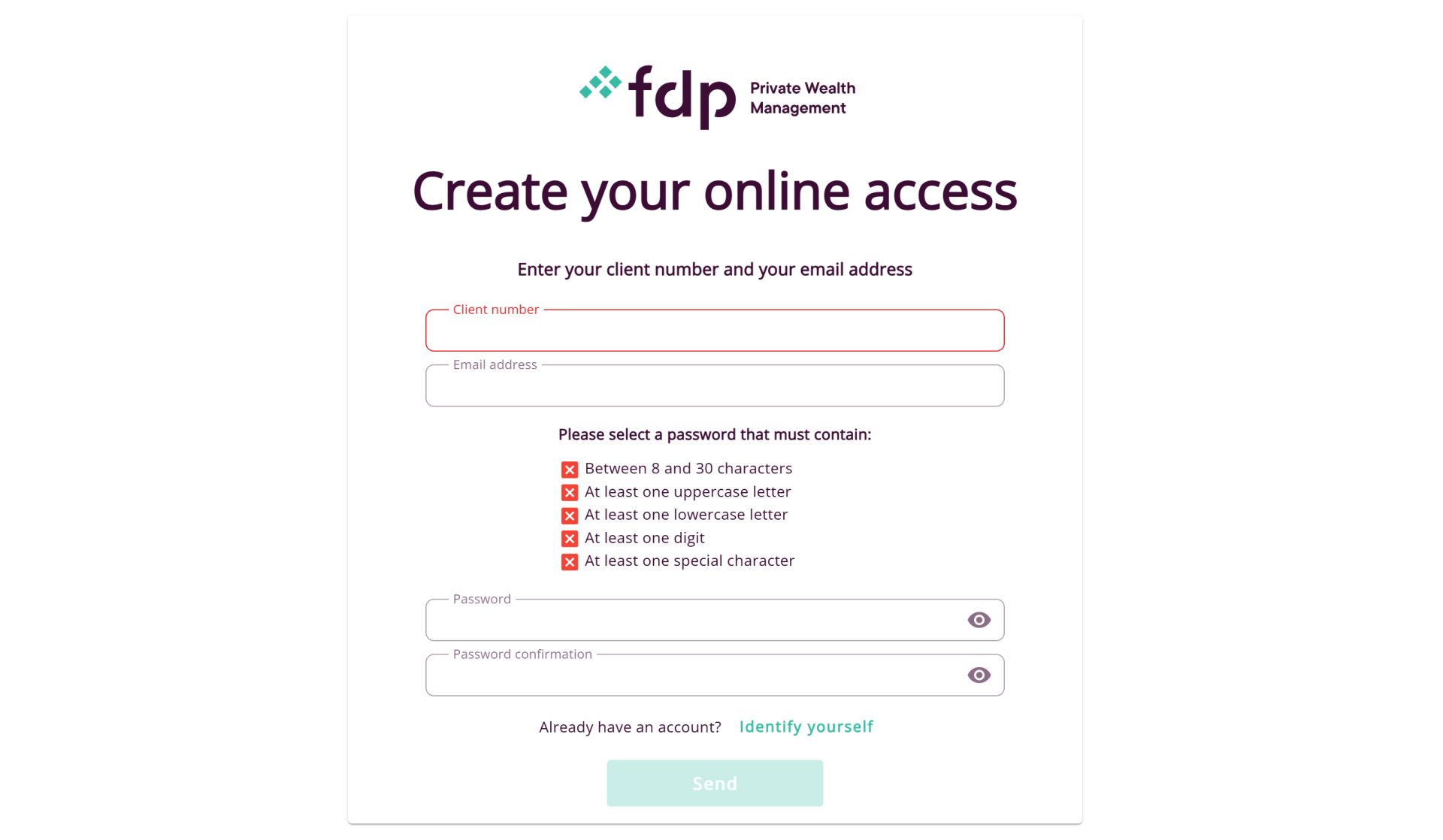
- Next, you must enter your client number and email address.
- On the same page, you must choose a password.
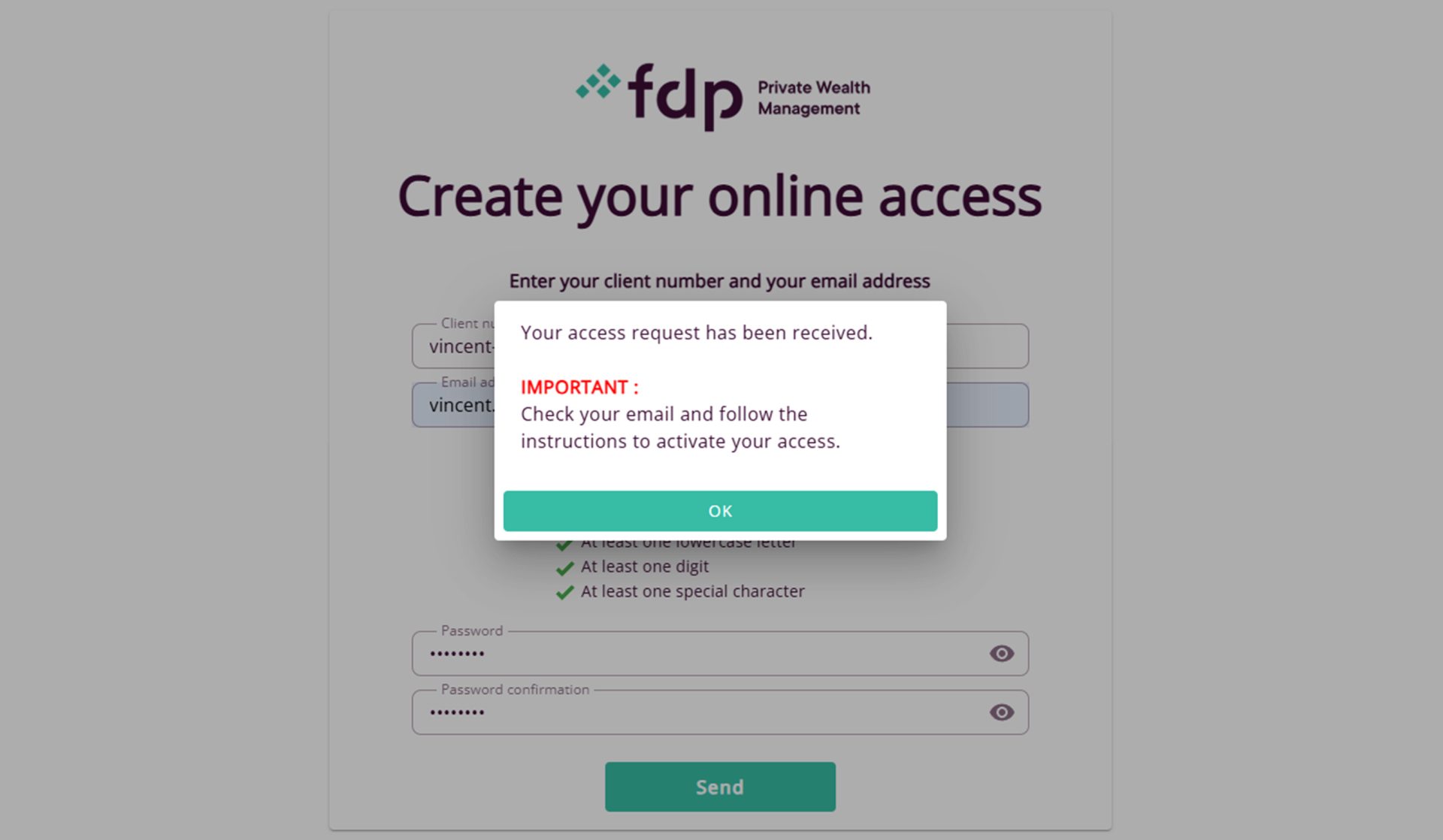
- You will then receive an email containing a link to finalize your registration. This step is necessary to validate and complete your request. If the email is not in your inbox, please check your spam folder.
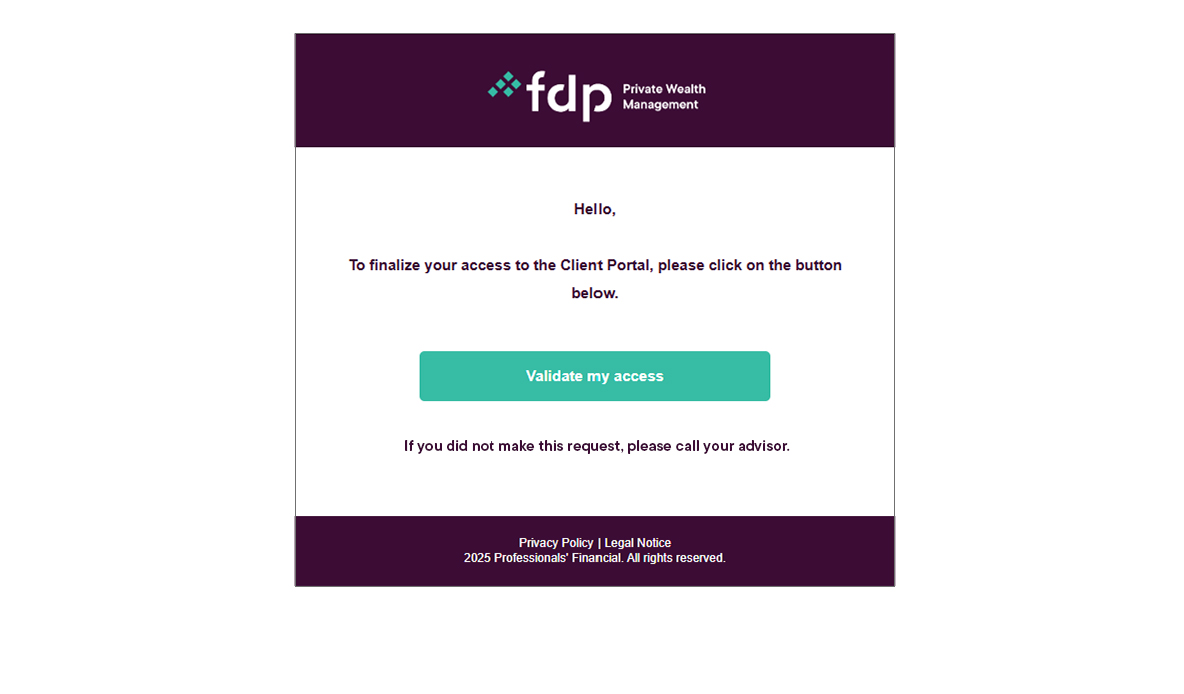
- After accessing this link, your registration will be complete and you will be able to log in on the Client Portal.

Logging in to the Client Portal
Validation to access the Client Portal is done by text message or email and remains valid for 24 hours after the code has been entered.
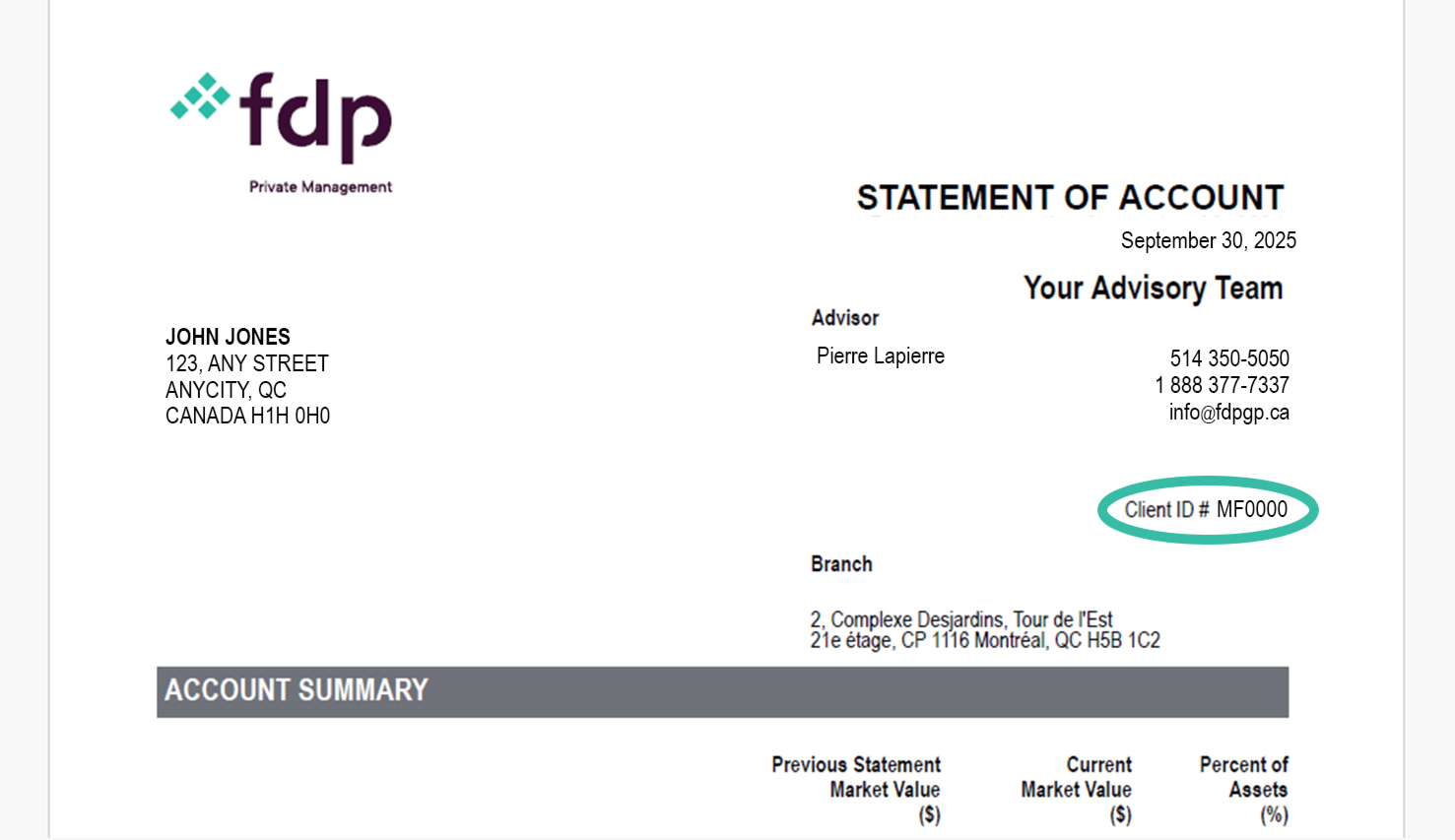
Where can I find my client number?
You will be asked for your client number each time you log in. Don’t confuse it with your account numbers. It consists of a combination of six characters and always begins with the letters MF, for example: MF1A2B. You can find it:
- at the bottom of the welcome letter sent to you in the days after you become a client
- on your monthly statements (but not on quarterly statements)
- by contacting your advisor or their assistant
Browsing
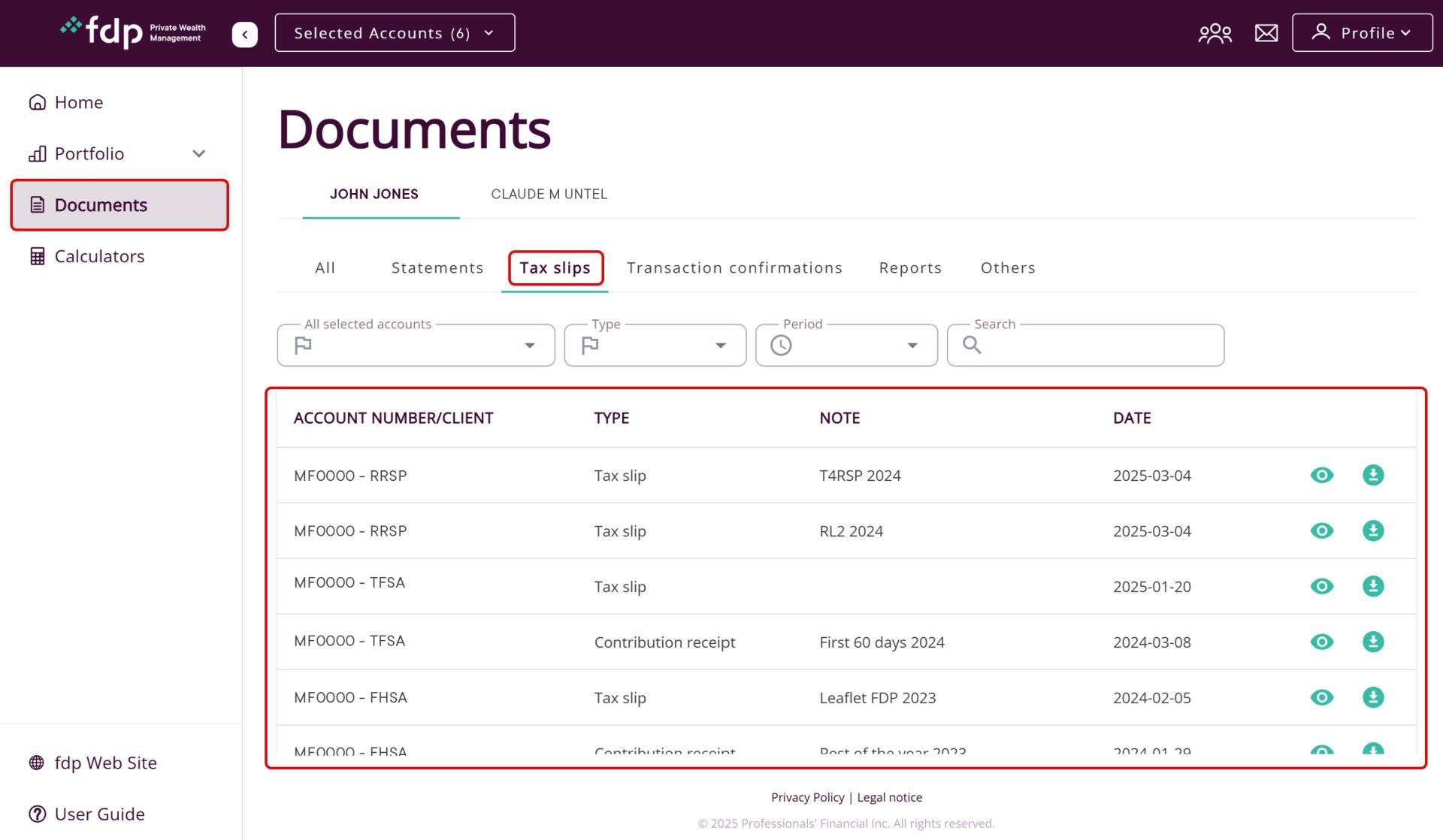
Where can I find my tax slips
Go to the “Documents” section via the left-hand menu, then click on the “Tax slips” tab. You can then search for them by account, type, or year.
When is the information about my investments updated in my Client Portal?
Portfolio information is updated every morning following a business day. However, occasional delays may occur during the update process. You can check the home page to see the exact date of the last update. If you notice an error or inconsistency in the information shown, please contact us so that we can correct the problem as soon as possible.
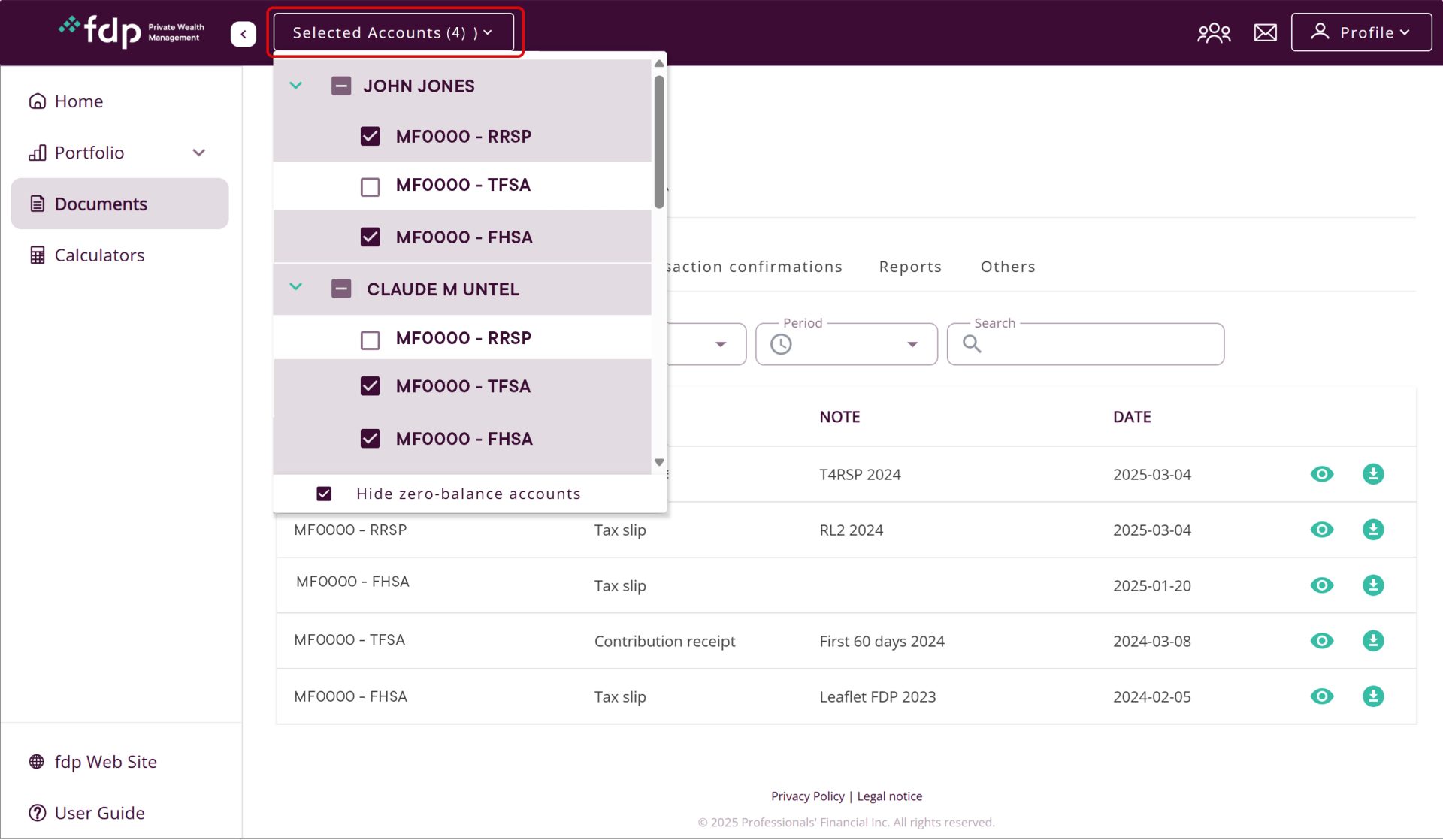
Why can't I see one of my accounts in the Client Portal?
Please check under “Selected accounts” at the top left of the screen to ensure that all your linked accounts and profiles are displayed. If you wish to change your permissions, please contact us.
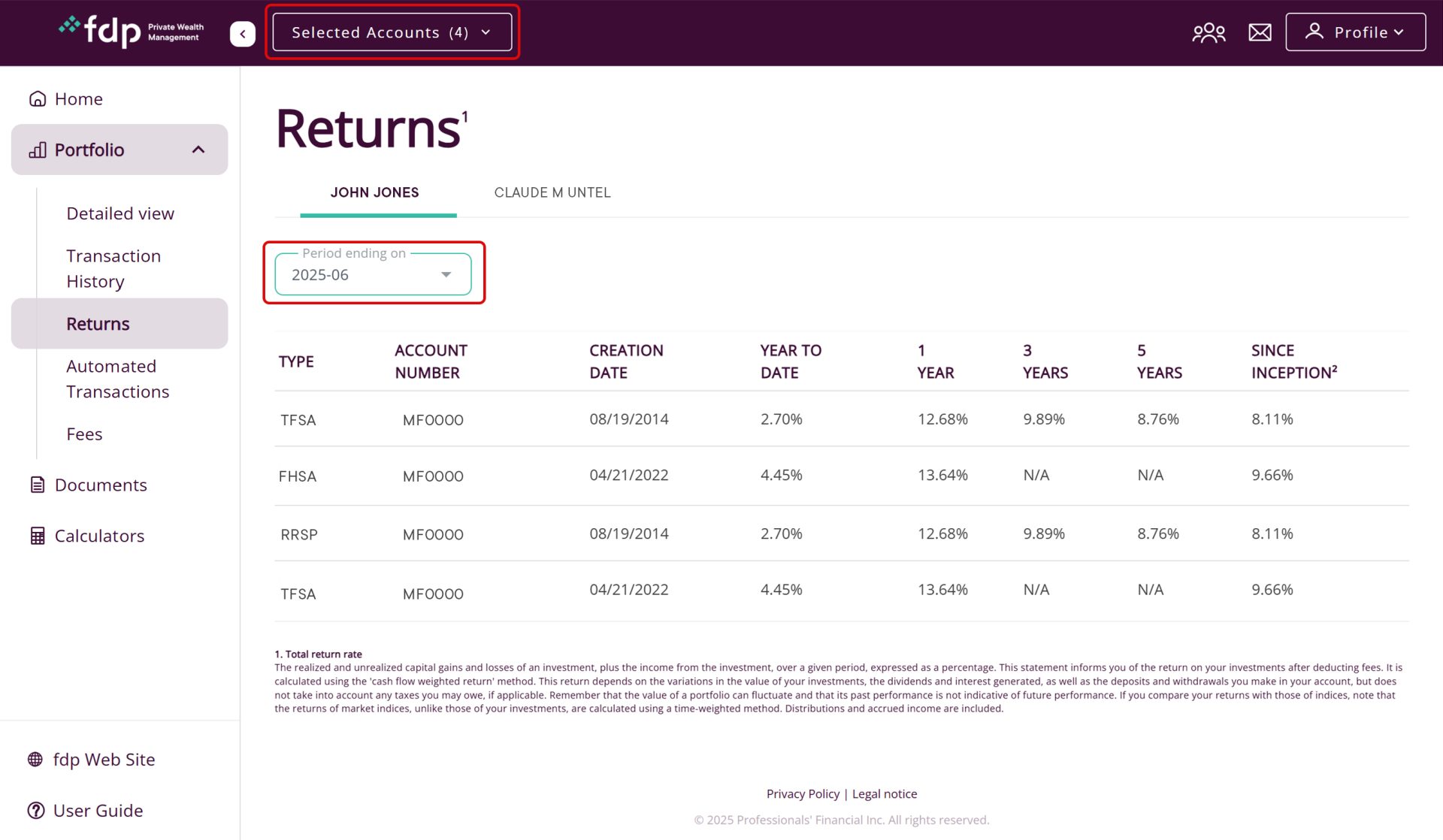
Why is one of my accounts not appearing in the “Returns” section?
Only accounts that are active during the selected period are displayed. To view the return of an inactive or closed account, simply click on the “Period ending on” field and return to a period when that account was active/open. Also, make sure that the account in question is checked under “Selected accounts,” which is located in the menu at the top of the page.
Mobile devices
How do I add a quick access icon to the Client Portal on the home screen of my mobile device?
To make it more easily accessible, you can create a shortcut to the Client Portal website directly on the home screen of your mobile device. This feature allows you to access your Portal with a single tap, without having to enter the website address each time.
Apple devices:
- Go to the website via the Safari browser.
- Tap the share icon (square with an arrow pointing up) at the bottom of the screen.
- Scroll up the sharing options and select “Add to home screen.”
Note: You can change the name of the shortcut that will appear under the icon.
- Then tap “ Add.”
- Drag “Add” to the upper right corner to confirm.
Android devices:
- Go to the desired website.
- Tap the “Plus” button located to the right of the address bar.
- Select “Add to home screen.”
- If necessary, change the name of the shortcut, then confirm by tapping “Add.”